![turfrad_logo_outlines (1)-1.svg]](https://support.turfrad.com/hubfs/turfrad_logo_outlines%20(1)-1.svg)
This article assumes that you have already setup WiFi on your sensor, if you are setting up a new sensor please see the setup video here: https://support.turfrad.com/set-up-your-sensor-demo-video
You can configure both a primary and secondary WiFi network for your turfRad sensor directly in the turfRad mobile app (since v.1.18.3) for iOS and Android.
A secondary network gives the sensor another connection option when the primary network is unavailable. This is useful when you want to upload data from different locations on the course.
Common uses of a secondary WiFi network
You may be interested in this configuuration if you use a mobile LTE hotspot or mobile phone hotspot while on the course, or want to configure an additional WiFi network at the club house, halfway house, or another upload location.
How network priority works: The sensor always attempts to connect to the primary network first. If the primary network cannot be found or is unavailable, it will fall back to the configured secondary network.
Step by step configuration:
1. Open the turfRad mobile app and select the WiFi tab from the bottom navigation bar: Under Configured WiFi networks, you will see the network currently used by the sensor. Under Available WiFi Networks, you will see additional networks within range and currently available to configure.
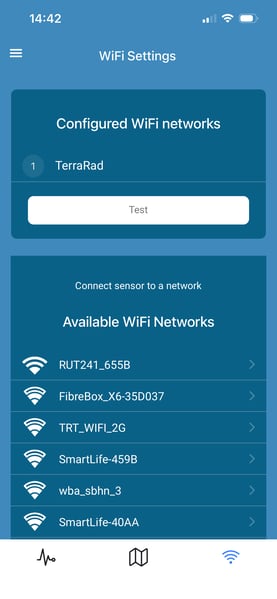
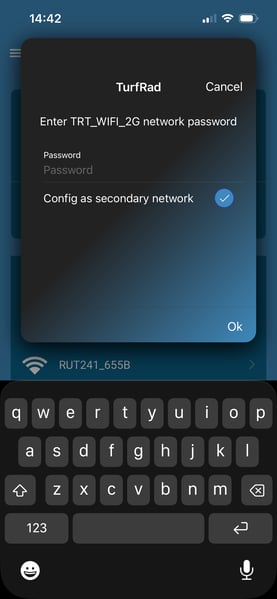
2. Select and configure the secondary network: Tap the WiFi network you want to add. Enter the network password, select Config as secondary network, and then tap OK.
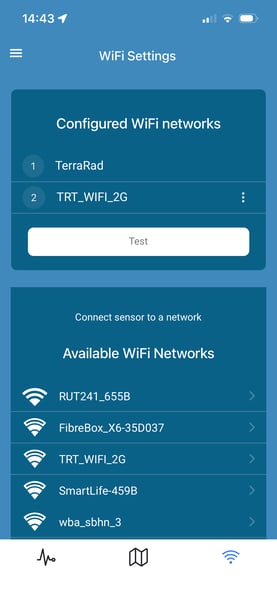
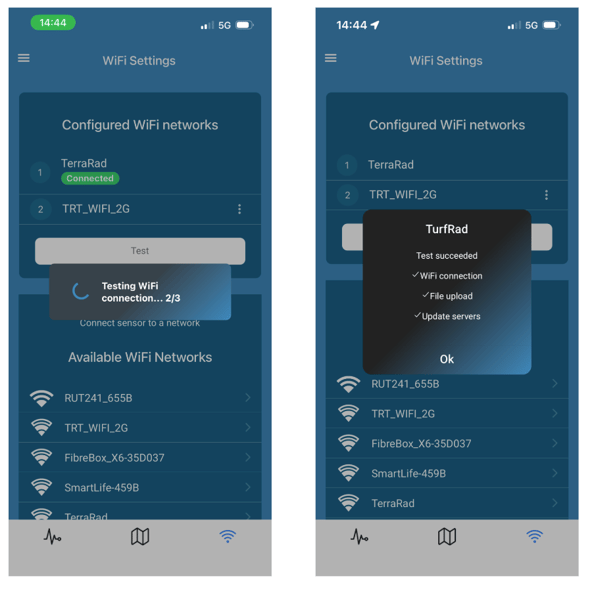
3. Confirm the network was added: After saving, both networks will appear under Configured WiFi networks. The numbers show their priority: 1 = Primary network and 2 = Secondary network.
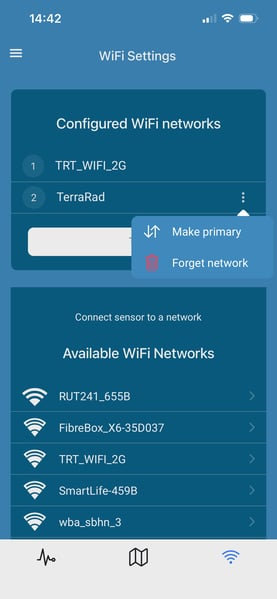
4. Change which network is primary: you can change the network priority at any time. Tap the three dots next to the secondary network and select Make primary. The networks will switch positions, making the selected network the sensor's first connection choice. You can also select Forget network if the sensor should no longer use that network.
5. (Optional) Test the WiFi connection: After configuring the networks, tap Test. The sensor will always run the test on the primary network if it is within range. If you want to test the secondary network, temporarily swap it to primary (step 4 above).
 Why Using a Secondary Network on the Course
One of the main benefits of a secondary WiFi network is the ability to upload data on a hotspot while on the course, and still relying on your facility network for standard operation without the need to regularly swap WiFi configuration in the Mobile App.
For example, you could configure:
Primary: Maintenance WiFi
Secondary: Mobile LTE hotspot or phone hotspot
When the Maintenance WiFi is unavailable, the sensor can fall back to the secondary configured hotspot when available.
Reminder: You can force the sensor into upload mode while you are on the course by pressing and holding the FUNCTION button for 5 seconds.
This can be useful when you want the sensor to connect to your mobile hotspot and upload collected data before returning to the clubhouse.
How WiFi Priority Works
The sensor follows a simple connection order:
Primary WiFi available → Connect to primary
Primary WiFi unavailable → Try secondary WiFi
The secondary network therefore acts as a fallback rather than replacing your normal WiFi connection. It can take up to 30 seconds to check for Primary WiFi before switching over to the secondary WiFi.
Key Takeaway
Configure the WiFi network you use most often as the primary network and use the secondary network for an alternative upload location or mobile hotspot.
This allows the sensor to use your normal network automatically while still giving you another way to upload data when you are elsewhere on the course.