![turfrad_logo_outlines (1)-1.svg]](https://support.turfrad.com/hubfs/turfrad_logo_outlines%20(1)-1.svg)
The "Measure and Note" feature lets you add observations, mark areas of interest, and document maintenance activities directly on your turfRad moisture maps.
Whether you've identified a sprinkler issue, noticed signs of disease, or want to record work completed on a particular area, notes help you keep track of important information in the context of your course.
1. Create a Note on Your Map
- Open the turfRad Portal and navigate to the course and area you want to annotate.
- Open Measure and Note.
- Select the Note tool.
- Click the location on the map where you want to add your note, or outline a larger area using a polygon.
- Enter the relevant details and save your note.
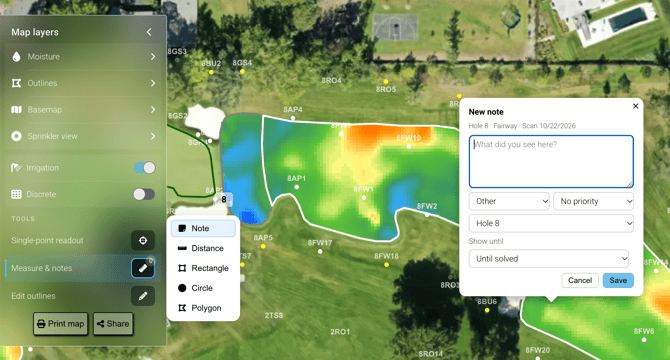
You can use a simple point to mark a specific location (see above) or a polygon to highlight a larger area (see below), such as a drainage problem or an area requiring maintenance.
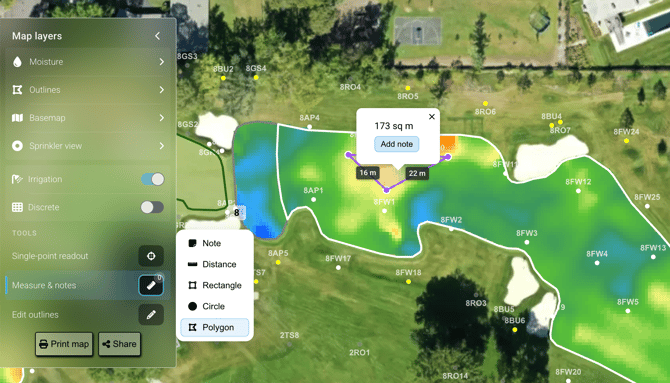
2. Add Details to Your Note
When creating a note, you can provide additional information to make it easier to organize and reference later.
- Category: Choose from Sprinkler, Disease, Drainage, or Other.
- Priority: Assign a priority to indicate the importance of the observation.
- Hole: Associate the note with a particular hole. The Portal can automatically assign a hole based on the note's location.
- Show Until: Choose how long the note should remain visible.
For ongoing issues, select Until Resolved to keep the note visible until it is resolved. For temporary observations, you can set a limited duration, such as 30 days.
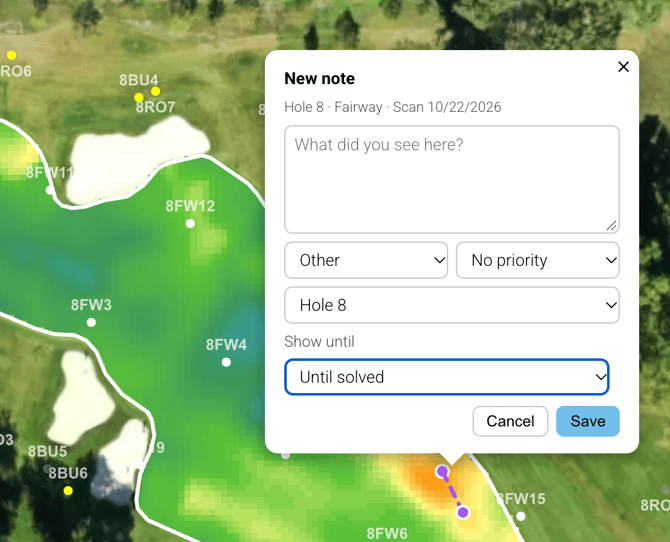
3. View and Track Your Notes
You can access your notes through the Notes List in the Portal.
Notes associated with a hole also appear in Card View, allowing you to review observations and maintenance activities alongside your moisture data.
For example, you might add a note when you identify a sprinkler problem and record the work carried out to address it. This helps build a history of course conditions and management activities over time.
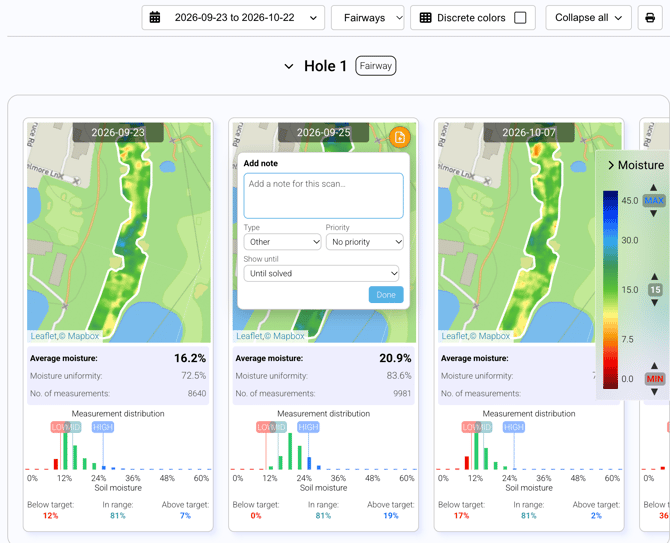
4. Use Notes to Highlight Areas That Need Attention
Notes can also help you communicate specific locations or requested changes. For example, you can:
- Mark a sprinkler that needs inspection.
- Outline an area showing signs of disease or poor drainage.
- Document a maintenance activity or course adjustment.
- Draw a polygon around an area where a map or course outline needs to be updated.
This makes it easier to identify the exact location of an issue without taking screenshots and marking them up separately.