![turfrad_logo_outlines (1)-1.svg]](https://support.turfrad.com/hubfs/turfrad_logo_outlines%20(1)-1.svg)
The Settings tab lets you adjust how the platform looks, how data is displayed, and how moisture thresholds are managed.
1. Display Settings
Customize the overall look and units used in the platform:
-
Dark Mode: Switch between light and dark themes
-
Design Theme: Choose between the default style and a modern glassmorphism interface
-
Language: Change the app language
-
Distance Unit: Select meters or feet
-
Temperature Unit: Select Celsius or Fahrenheit
2. Map Settings
Control how information is displayed on the map:
-
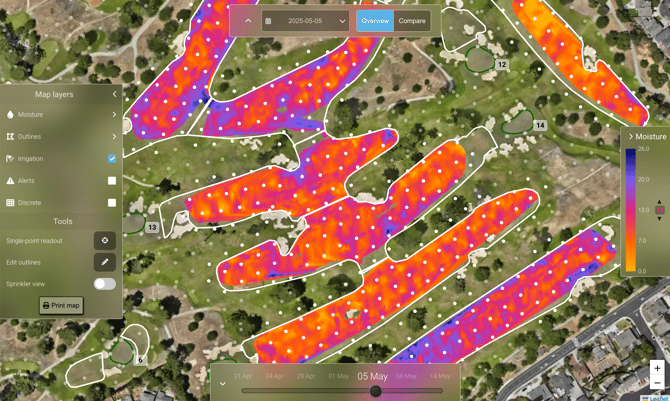
Colorblind Mode: Enable a colorblind-friendly color scheme
-
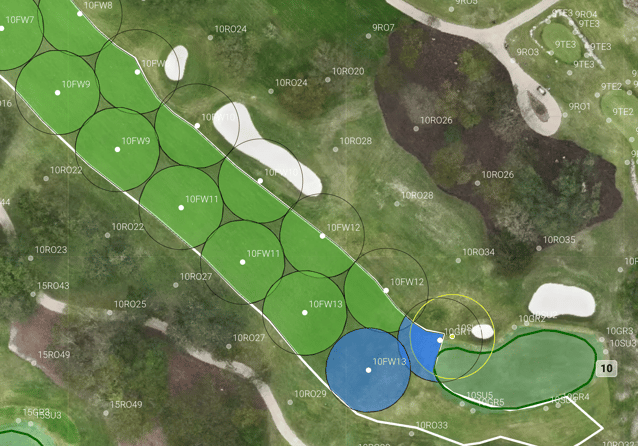
Sprinkler Clipping: Clip sprinkler radiuses to their assigned area type when sprinkler view is active (see screenshot below).
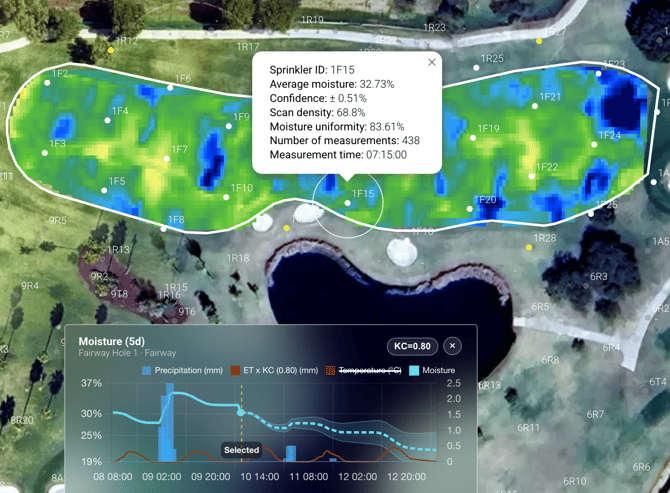
Advanced Features: With Advanced Features off, you’ll see key metrics like average moisture and moisture uniformity when hovering over fairway outlines or sprinkler heads. Turning them on adds deeper insights, such as confidence, scan density, and the number of measurements (see screenshot below). Selecting a fairway opens an expanded panel at the bottom of your screen with a 5-day moisture trend graph including hourly precipitation, ET × Kc, and moisture levels. You can also adjust your Kc directly within this panel.
3. Moisture Settings
Define and manage how moisture data is visualized across your course.
You can edit thresholds per area type (fairways or greens) or apply the same thresholds across all areas. Moisture thresholds are defined using five levels: Min, Low, Mid, High, and Max, which determine how conditions are visualized in both continuous (gradient) and discrete views.
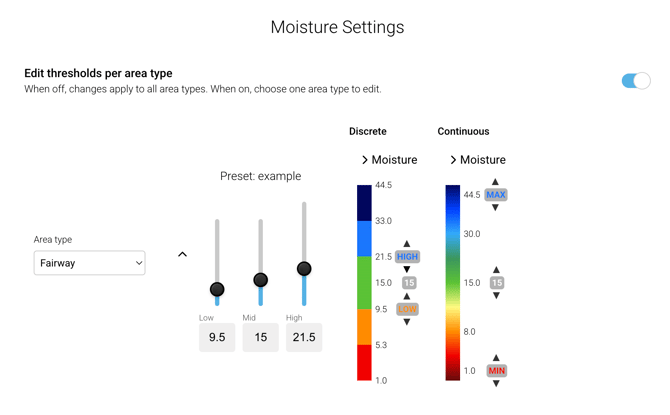
You can also create and manage Moisture Target Presets, allowing you to save and switch between different threshold setups. Each preset can include separate values for fairways and greens, making it easy to adapt to different conditions or strategies.
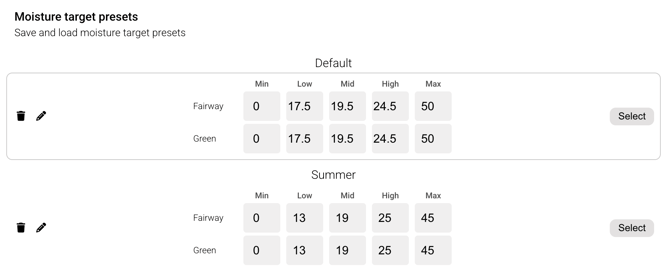
For example, you might create:
-
A tighter range for performance conditions
-
A broader range for seasonal maintenance
Once saved, presets can be quickly selected and applied at any time.
Here’s a demo video showing how Moisture Target Presets can work for you: