![turfrad_logo_outlines (1)-1.svg]](https://support.turfrad.com/hubfs/turfrad_logo_outlines%20(1)-1.svg)
There are three ways to get your sprinkler data into the turfRad Portal. Use them in the following order:
1. CAD Files (Preferred)
Best option. Most accurate and includes station tags or head IDs.
Supported formats:
.dxf.dwg
Steps:
- Request the CAD file from your irrigation architect or consultant
- Save the file locally
- Upload it to the turfRad Onboarding Form
- If the files are too big use: WeTransfer link.
2. Shapefiles (Irrigation Computer)
Use if CAD files are not available.
Required files:
.shp.shx.dbf
Steps:
- Open File Explorer → select This PC

- Search for
.shp - 3. Locate files (e.g. sprinklers.shp, stations.shp, ih.shp, heads.shp, irr_... or the sprinkler model number)
- IMPORTANT: Right-click → Open file location. This will make sure we get all of the necessary files .shx and .dbf and not just the .shp file.
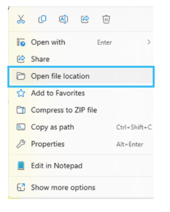
- Press CTRL + A → select all files
- Right-click → Compress to ZIP file
- Upload ZIP to the turfRad Onboarding Form
- If the files are too big use: WeTransfer link.
3. Toro Lynx (NSN)
If using Toro Lynx with an active NSN subscription:
- turfRad will request this data from NSN
- You can expedite this process by calling the NSN support hotline and requesting them to pull this data from your central control computer. Let them know that it's for turfRad and they will know what they need to do.
Note:
Always use CAD files if available if your not a Toro Lynx user.