![turfrad_logo_outlines (1)-1.svg]](https://support.turfrad.com/hubfs/turfrad_logo_outlines%20(1)-1.svg)
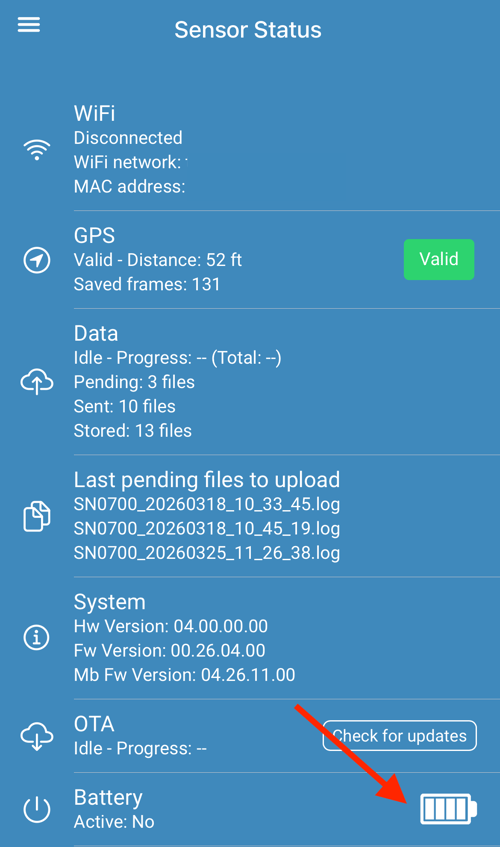
The turfRad Mobile App includes a Battery Meter, allowing you to quickly check the charge level of your sensor’s internal battery.
This helps ensure your sensor is ready for use and can complete uploads reliably.
How to Check Battery Status
-
Connect to your sensor via Bluetooth in the turfRad Mobile App
-
Open the Sensor Status screen
-
View the Battery Meter, which displays the current charge level
Understanding Battery Indicators
-
Battery Meter – Shows the current charge level of the internal battery
-
Restart LED on sensor – If lit, the sensor is powered (vehicle or internal battery)
-
Continuous beeping – Indicates the internal battery is low and needs charging
How Charging Works
The internal battery charges automatically when the sensor is connected to power. You can charge the sensor in the following ways:
You can charge the sensor in the following ways:
-
USB charging (recommended):
Use the included USB adapter with a minimum 2A (10W) power source
(Lower power outputs may not charge the battery properly) -
Vehicle power:
If USB charging is not practical (e.g., sensor is mounted or direct wired), you can charge the battery by turning on your vehicle and allowing it to run until the battery is fully charged.
Important Notes
-
A charged battery is required for data uploads after the vehicle is turned off
-
If the battery is low, uploads may be delayed until the sensor is recharged
-
If the battery is fully discharged, the sensor may behave unpredictably — for example, it may not acquire GPS signal or enter measurement mode reliably
For a full overview of recommended power setups and installation options: Recommended Power Setup